Configure the MQTT Driver
The MQTT driver connects Machines Simulator to an MQTT broker.
Machines Simulator publishes its digital and analog input values to the broker and receives digital and analog output values from MQTT topics.
This example uses:
- the public HiveMQ test broker
- MQTTX as an MQTT client for monitoring and publishing messages
The public HiveMQ broker is intended for testing only. Do not use it for production systems or confidential information.
Communication structure
The default MQTT topics are:
| Machines Simulator signal | Direction | Default topic |
|---|---|---|
| Digital input | Machines Simulator to broker | simulation/io/in/digital/{index} |
| Analog input | Machines Simulator to broker | simulation/io/in/analog/{index} |
| Digital output | Broker to Machines Simulator | simulation/io/out/digital/{index} |
| Analog output | Broker to Machines Simulator | simulation/io/out/analog/{index} |
The signal index starts at 0.
For example, if 32 digital signals are configured, the valid indexes range from 0 to 31.
The in and out sections of the topic refer to the Machines Simulator I/O direction.
Machines Simulator publishes its inputs and receives its outputs.
Configure the MQTT driver
- Open the machine you want to use.
- Open the I/O Drivers menu.
- Select MQTTDriver.
- Click Configure.
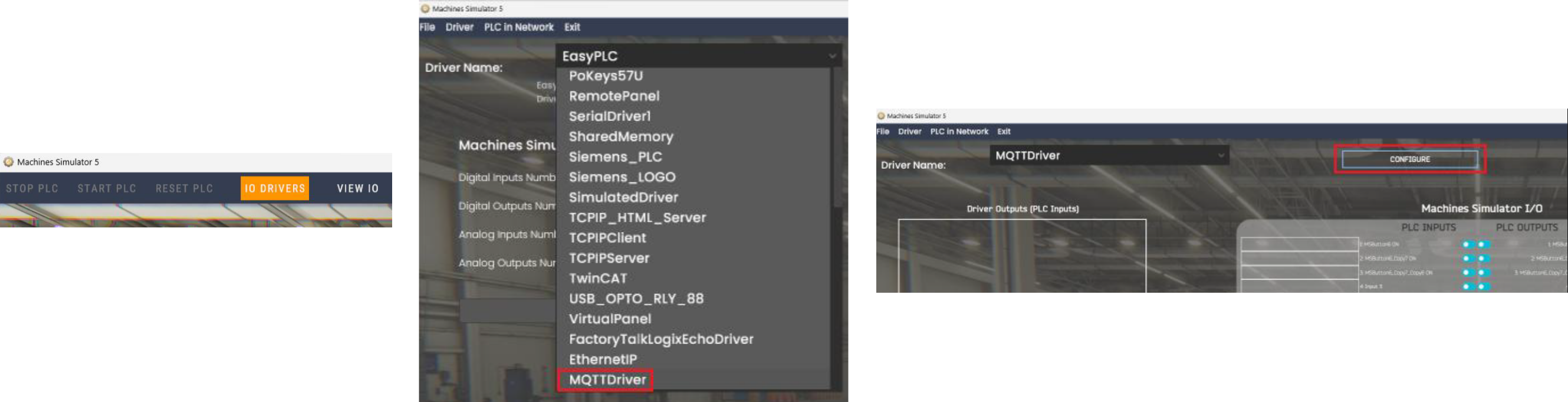
The MQTT Client Driver configuration window appears.
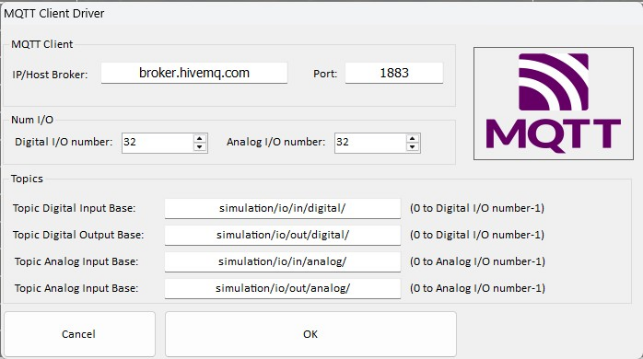
Configure the broker connection
The Machines Simulator MQTT Client Driver window, allows you to enter the connection settings. For this example, use the following values:
| Setting | Value |
|---|---|
| IP/Host Broker | broker.hivemq.com |
| Port | 1883 (default) |
| Digital I/O number | Number of digital signals required |
| Analog I/O number | Number of analog signals required |
IP/Host Broker: The IP address or host name of the MQTT broker.
broker.hivemq.com is a free public MQTT broker provided by HiveMQ.
The driver supports a maximum of:
- 1024 digital I/O signals
- 1024 analog I/O signals
Configure the topic bases
You can use the default topic bases or replace them with your own topic structure. The default values are:
| Setting | Default value |
|---|---|
| Digital input topic base | simulation/io/in/digital/ |
| Digital output topic base | simulation/io/out/digital/ |
| Analog input topic base | simulation/io/in/analog/ |
| Analog output topic base | simulation/io/out/analog/ |
The driver automatically adds the signal index to the end of each topic.
Digital input example
Digital input 5 is published using:
Topic: simulation/io/in/digital/5
Payload: 1
The digital payload can be:
1for ON0for OFF
Analog input example
Analog input 2 is published using:
Topic: simulation/io/in/analog/2
Payload: 25.7
Analog signals use numeric values.
After completing the configuration, click OK.
Assign the I/O signals
Assign the MQTT signals to the corresponding Machines Simulator signals.
You can assign them in either of the following ways:
- drag & drop each MQTT signal onto the corresponding Machines Simulator I/O
- select Driver > Automatic Assignment when the signals are sequential
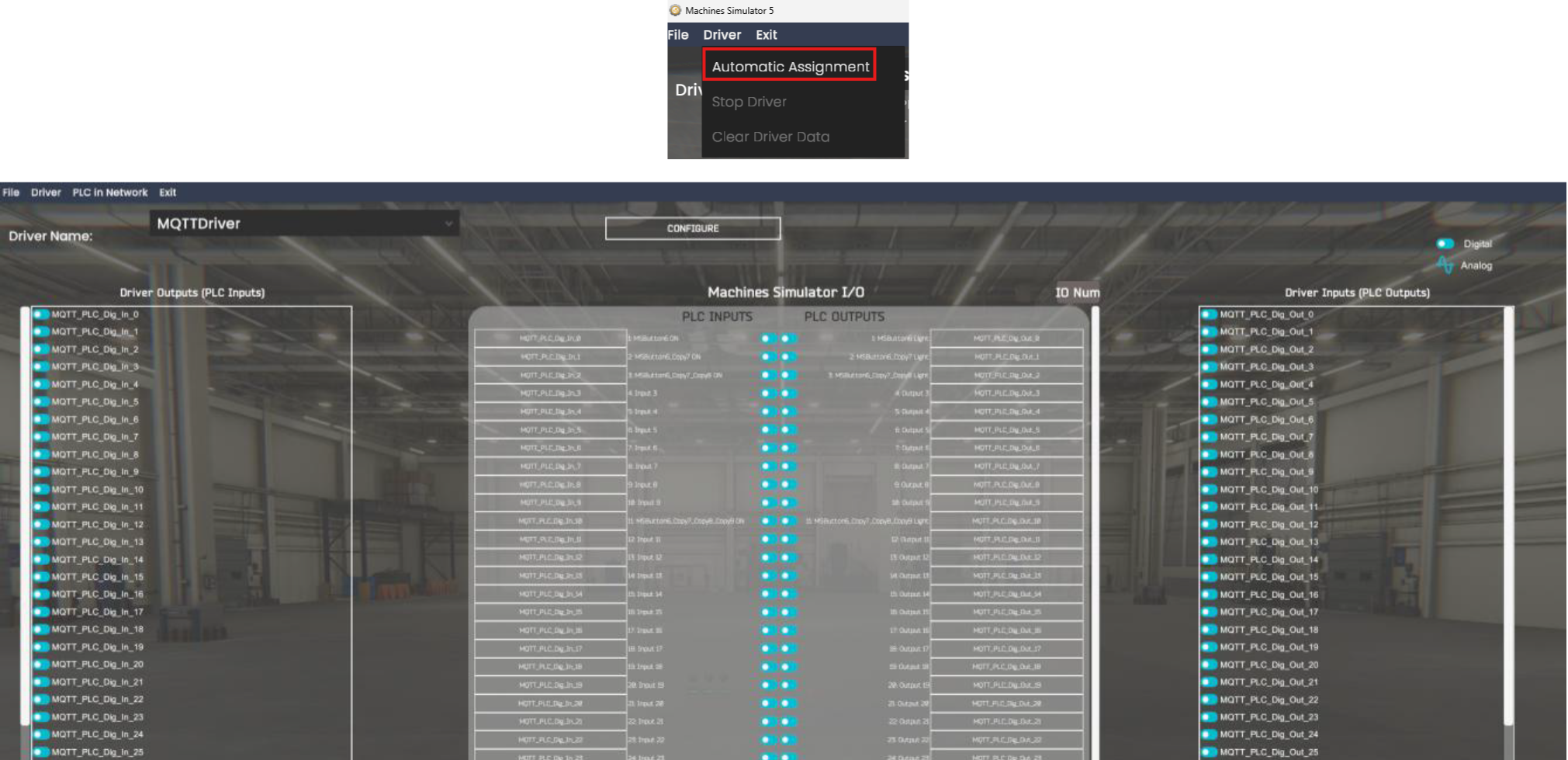
When the assignment is complete, select:
Exit > Start Driver and Exit
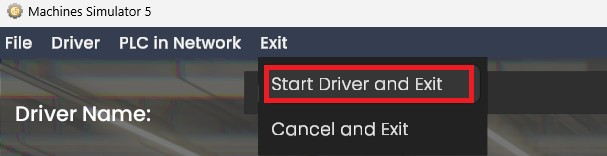
Machines Simulator is now ready to connect to the MQTT broker.
Configure MQTTX
MQTTX is used as Server in this example to monitor the input messages published by Machines Simulator and to send output values back to the simulation.
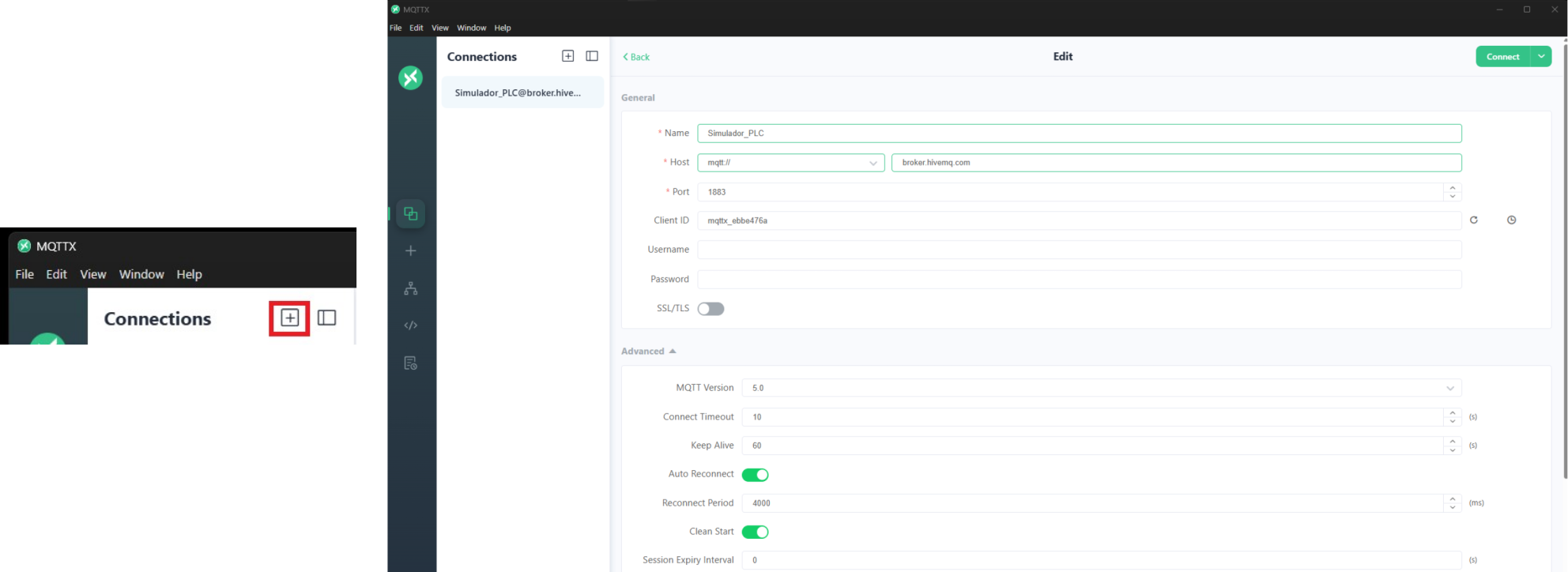
Create the connection
- Open MQTTX.
- Create a new connection.
- Configure the following values:
| Setting | Value |
|---|---|
| Name | Any descriptive connection name |
| Host | mqtt://broker.hivemq.com |
| Port | 1883 |
| Username | Leave blank |
| Password | Leave blank |
- Click Connect.
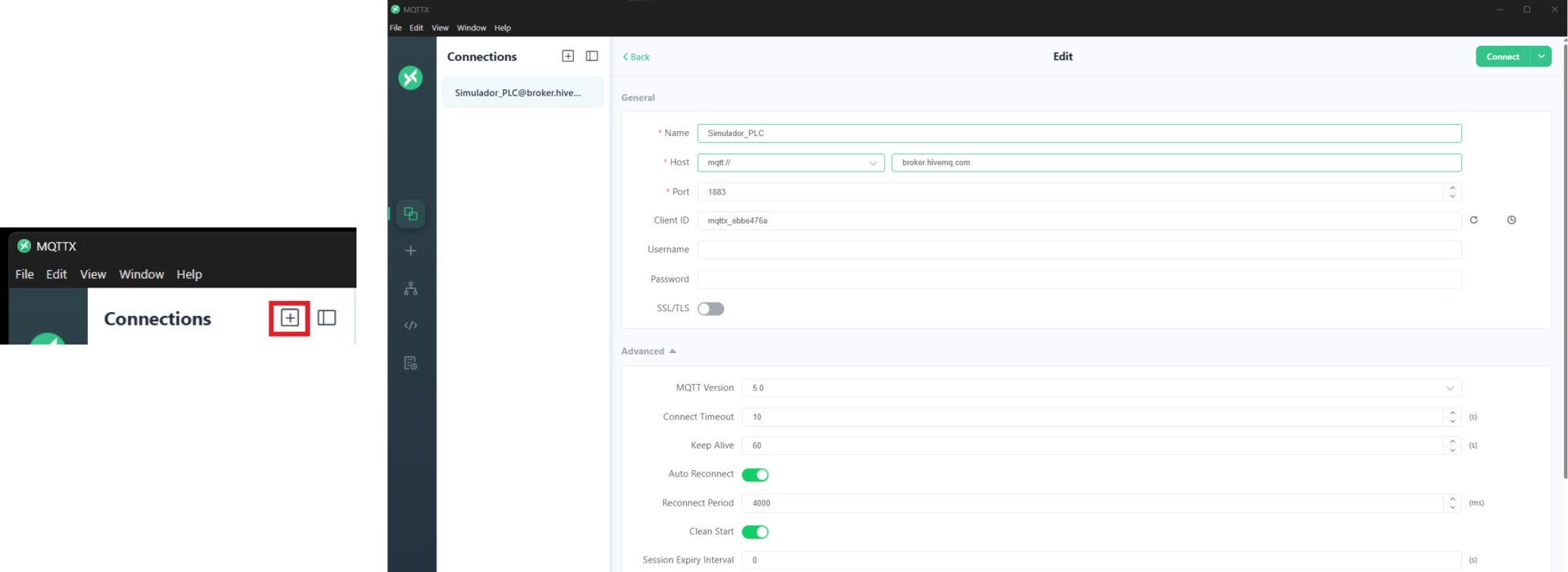
Subscribe to Machines Simulator inputs
Machines Simulator publishes digital and analog input values through separate topic branches.
Subscribe to digital inputs
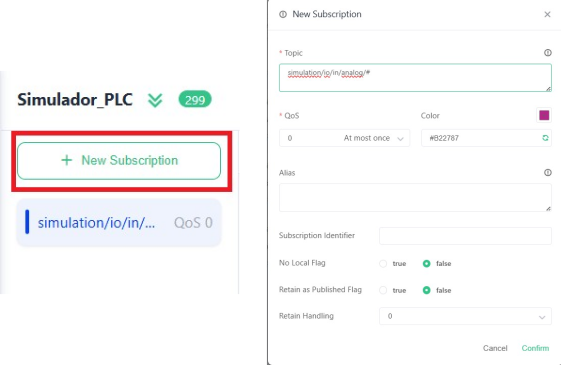
- Click New Subscription.
- Enter the following topic:
simulation/io/in/digital/#
- Leave the remaining settings at their default values.
- Click Confirm.
The # wildcard subscribes to all digital input indexes below the topic base.
Subscribe to analog inputs
Create another subscription using:
simulation/io/in/analog/#
Click Confirm.
The # wildcard subscribes to all analog input indexes below the topic base.
MQTTX is now subscribed to all digital and analog input messages published by Machines Simulator.
Test digital inputs
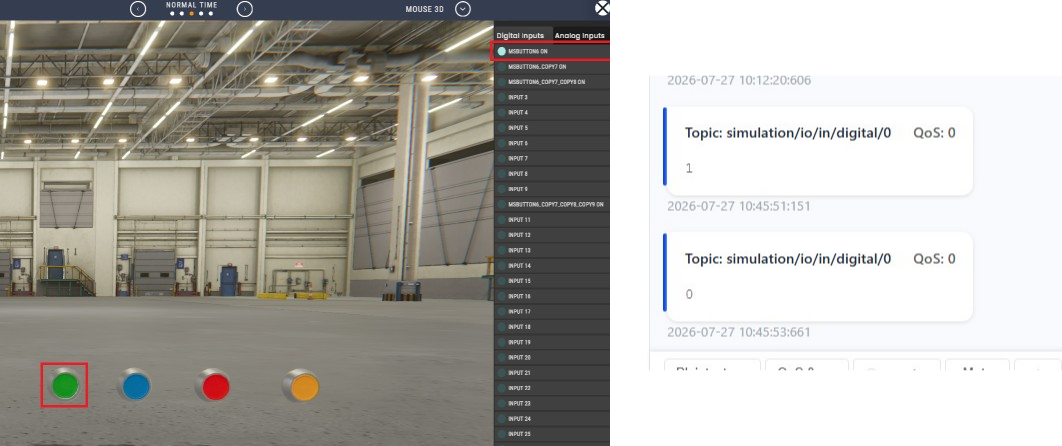
Activate or deactivate a digital input in Machines Simulator.
MQTTX receives a message similar to:
Topic: simulation/io/in/digital/0
Payload: 1
When the input is deactivated, the driver publishes:
Topic: simulation/io/in/digital/0
Payload: 0
Test digital outputs
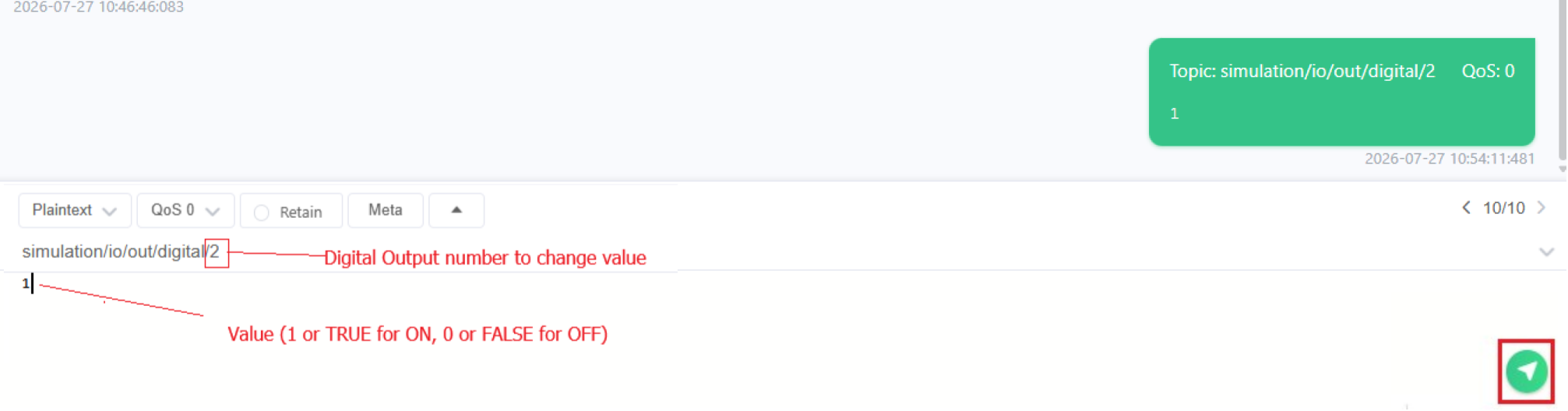
To control a digital output from MQTTX, publish a message to its output topic.
For example, to activate digital output 2, use:
Topic: simulation/io/out/digital/2
Payload: 1
Click Send.
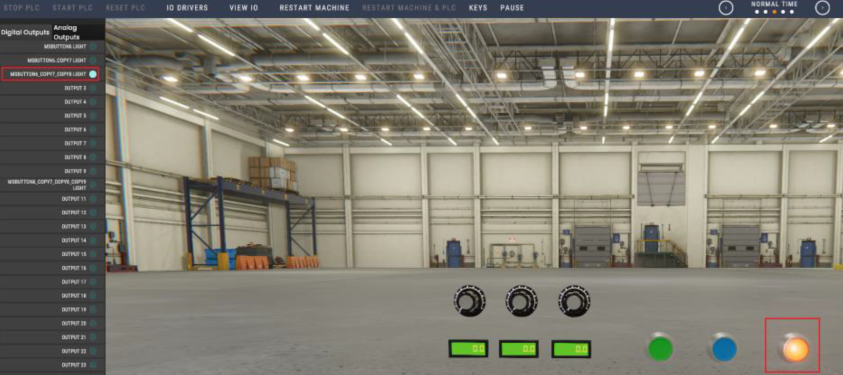
The corresponding output is activated in Machines Simulator.
To deactivate it, publish:
Topic: simulation/io/out/digital/2
Payload: 0
The driver also accepts boolean values:
TRUEfor ONFALSEfor OFF
Test analog inputs
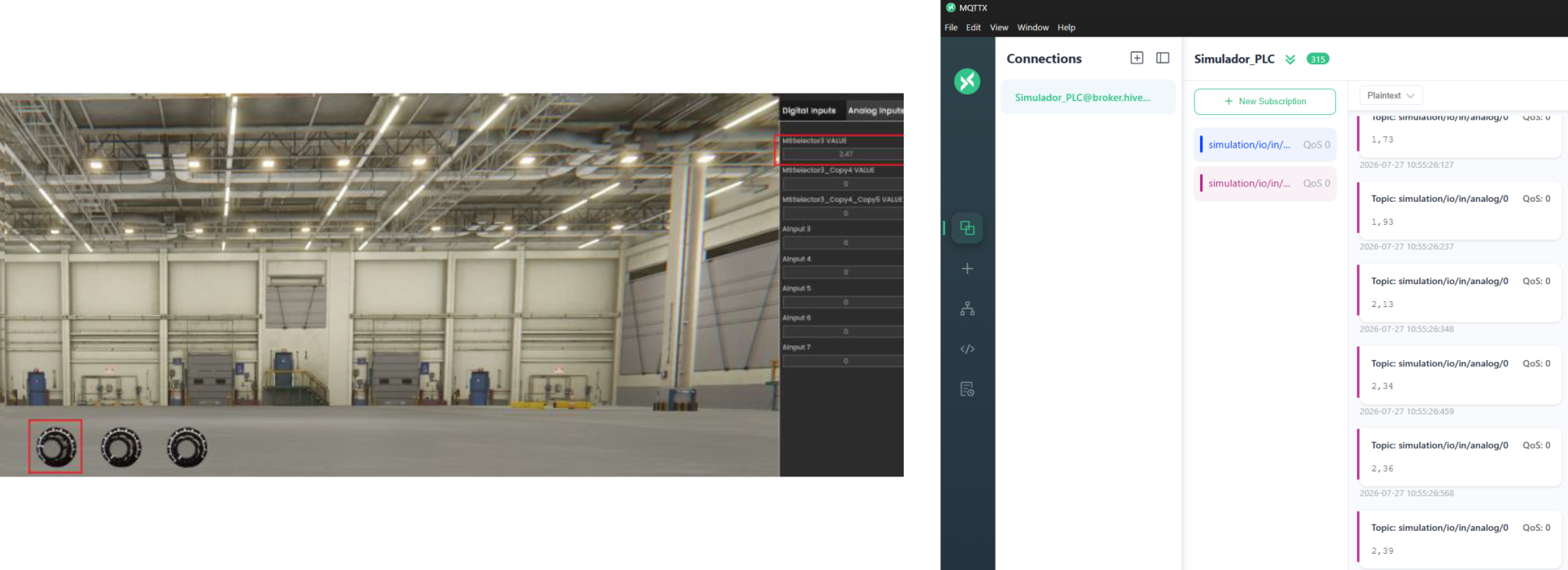
When an analog input changes in Machines Simulator, the driver publishes its numeric value.
For example:
Topic: simulation/io/in/analog/0
Payload: 2.45
The value can be monitored from the analog input subscription in MQTTX.
Test analog outputs
To change an analog output, publish a numeric value to the corresponding output topic.
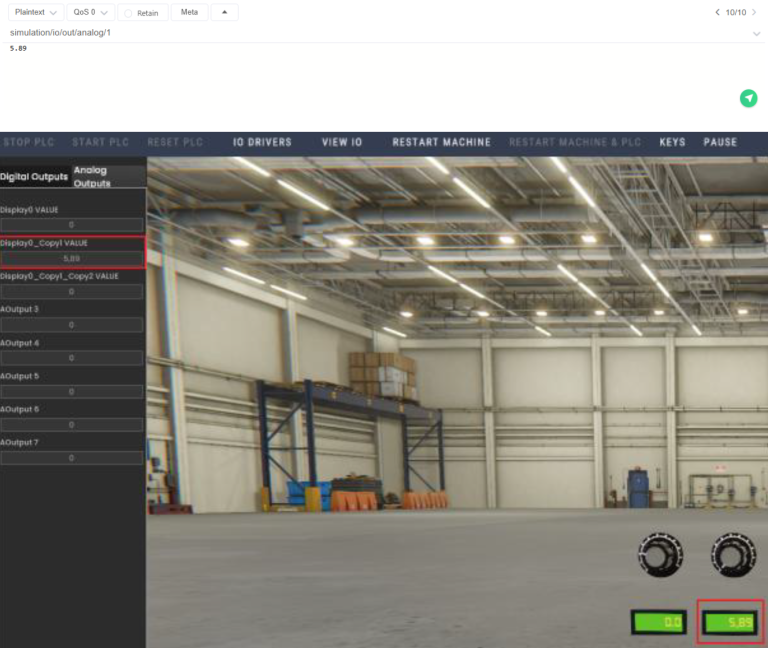
For example, to set analog output 1 to 5.89, use:
Topic: simulation/io/out/analog/1
Payload: 5.89
Click Send.
The new value appears in the corresponding Machines Simulator analog output.